Alerts
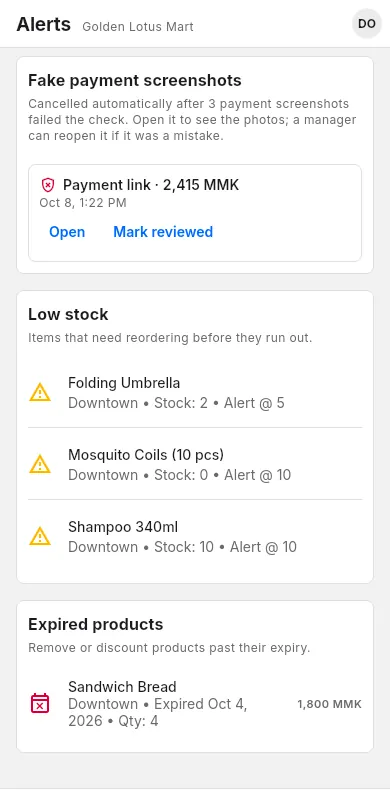
See low-stock, expired and expiring-soon warnings, review sales made offline, and check orders that were stopped because of fake payment screenshots.
Alerts collects everything that needs your attention: items running low, expired stock, stock that expires soon, offline sales with problems and fake payment screenshots. When there is nothing to do, it says "All good!".
#Low and out of stock
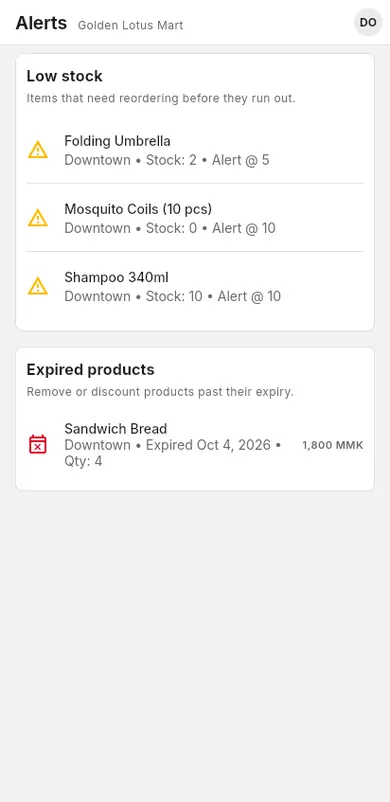
The Low stock list shows items whose stock is at or below their low-stock threshold. Each line shows the shop, the stock left and the alert number, for example "Main shop • Stock: 3 • Alert @ 5".
When to use: check it every day or before you order from suppliers.
- Open Alerts.
- Look at the Low stock list.
- Order more from your supplier. In Inventory › Purchase orders, Reorder low stock makes a draft order for all of them. See Purchase orders.
#Expired stock
The Expired products list shows batches whose expiry date has passed and that still have stock. It shows the shop, the expiry date and how many units are left.
When to use: you sell items with expiry dates and use batches.
- Open Alerts.
- Look at the Expired products list.
- Take the items off the shelf.
- Remove them from stock: Inventory › Adjust stock › Remove, with the reason Damaged or Return to vendor. See Adjust stock.
Expiry dates come from batches. See Batches and expiry.
#Expiring soon
The Expiring soon list shows batches that have not expired yet but will within the next days (30 days unless you change it). Each line shows the shop, the expiry date, how many units are left and how many days are left. The soonest come first.
When to use: you want to sell, discount or return stock before it expires.
- Open Alerts.
- Look at the Expiring soon list.
- Put those items at the front of the shelf, give a discount, or return them to the supplier.
To change how many days ahead you are warned (owners and managers):
- At the bottom of Alerts, tap Expiring-soon alert: 30 days before.
- Type the Days before expiry, for example 14. Type 0 to turn this alert off.
- Tap Save.
The setting is the same for all shops of your company. Expired stock always shows under Expired products, whatever the setting.
#Offline sale alerts
When the internet is down, the app keeps selling. Some sales could not be checked at the time. After they sync, any sale with a problem appears in the Offline sales report.
When to use: after the shop has been offline, or when you see this card in Alerts.
Problems you may see:
- Sold more than the stock on hand
- Expired stock was sold
- Paid more than the available balance (gift card, store credit or points)
- Unknown gift card or Inactive gift card used
- Prices changed since the sale (the sale kept its price)
- QR payment photo needs checking
- Open Alerts.
- Read each sale in the Offline sales report.
- Fix what is needed, for example count the stock or adjust a customer's balance.
- Tap Mark reviewed.
More about working offline: How offline mode works.
#Quotations, layaways and repairs
Three cards show what customers did and what is late. Tap a row (or Open) to open it; tap Mark reviewed when you have dealt with it.
| Card | What it shows |
|---|---|
| Quotations & invoices | Customers who accepted or declined a quotation, and invoices past their due date. See Reminders. |
| Layaways | Layaways past their pick-up date, and layaways that were cancelled. See Past the pick-up date. |
| Repair jobs | Jobs that are late, prices the customer approved or declined, and jobs ready to collect. Only when Repairs & service is on. See Repair alerts. |
#Fake payment screenshot alerts
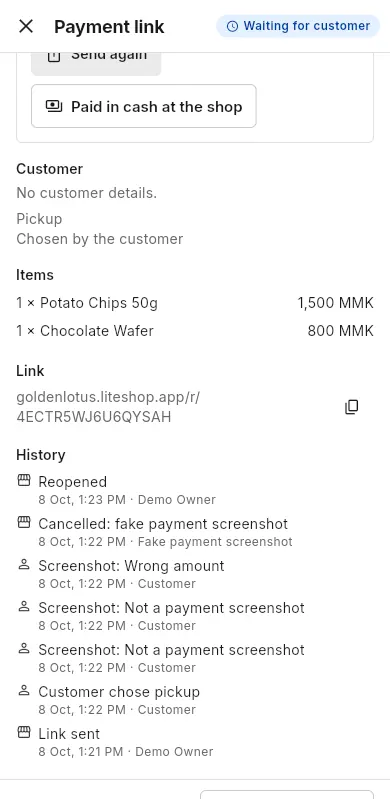
When a customer pays an online order or a payment link with QR, they upload a photo of the payment. If 3 photos fail the check, the app cancels the order or link by itself and adds it to Fake payment screenshots.
When to use: this card appears in Alerts.
- Open Alerts.
- Find the order or payment link under Fake payment screenshots.
- Tap Open to see the photos and the check results.
- Check your banking app to see if the money really arrived.
- If the money did arrive, a manager can tap Reopen on the order or link.
- Back in Alerts, tap Mark reviewed.