Security tips
Keep your shop, your money and your customers' data safe.
Most problems come from a lost phone, a shared password or a fake payment screenshot. These simple habits protect your shop.
#Protect your account
You sign in to LiteShop with Google or Facebook. Anyone who gets into that account can open your shop.
When to use: today, and whenever you change phones.
- Use a strong password for your Google or Facebook account.
- Turn on 2-Step Verification in your Google or Facebook account settings.
- Add a recovery phone number that only you control.
- Never share your account. Invite staff with their own account instead. See Invite people.
#Give the right role
Each role opens only some pages. Give each person the lowest role they need.
When to use: when you invite someone, and when their job changes.
- Make most staff Cashier. Cashiers can't refund, void, change prices or open settings.
- Make only trusted people Manager.
- Keep Owner for yourself and a partner.
- Remove people on the day they leave. See Remove a member.
See Roles for what each role can do.
#Keep PINs private
A passcode shows who made each sale. It only helps if each person keeps their own passcode secret.
When to use: when you add team members or share a register.
- Give each person their own passcode. Never share one passcode.
- Use 6 digits, not 4.
- Don't use easy numbers like
123456or a birthday. - Turn on Lock after each sale or use Lock register when you leave the counter. See Register lock.
- Change a passcode if someone else saw it.
#Always check QR payments
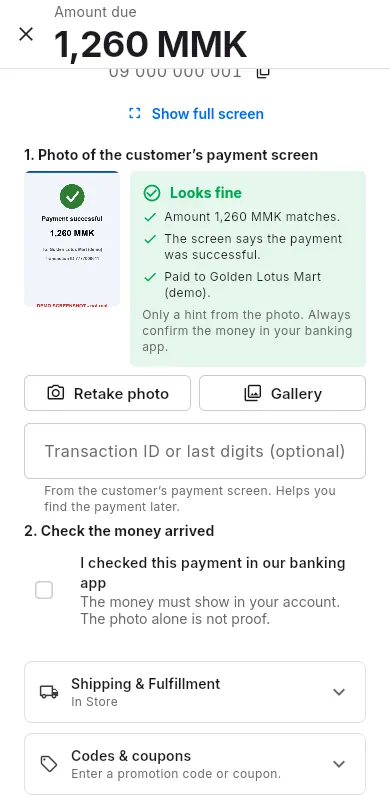
When a customer pays by QR, LiteShop asks for a photo of their payment screen. LiteShop reads the photo and shows a hint, like Looks fine or Warning – check carefully. The hint is not proof.
When to use: every time a customer pays by QR, in the shop or online.
- Take the photo of the customer's payment screen.
- Open your own banking app on your own phone.
- Find the new payment and check the amount and the name.
- Only then tick I checked this payment in our banking app.
- Finish the sale.
More help: QR photo check.
#Fake payment screenshots
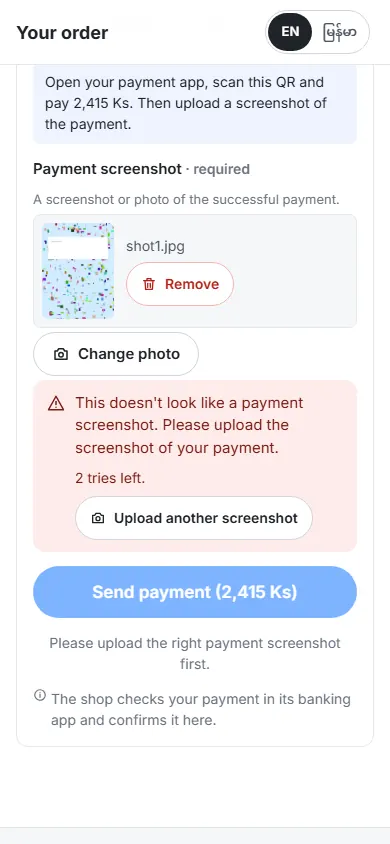
Some people send an edited or old screenshot instead of paying. LiteShop checks online payment photos and blocks clear fakes, such as a wrong amount or a transaction used before.
When to use: for orders from your online store and payment links.
- If a photo fails the check, the customer must upload another one.
- After 3 failed photos, the order is cancelled automatically.
- Owners and managers see these in Alerts.
- Still check every payment in your banking app before you tap Payment received.
More help: Fake screenshot guard and Fake payment alerts.
#Lost or shared devices
A shop phone or PC stays signed in. Anyone who picks it up can use LiteShop.
When to use: when a device is lost, stolen, sold or used by many people.
- Lock the phone or PC with a screen lock.
- On shared registers, turn on Require team passcode in Team > This device.
- If a device is lost, change your Google or Facebook password right away. Then sign out of all devices in your Google account security page.
- If a staff member's own phone is lost, remove them in Settings > Team and invite them again later.
- Before you sell or give away a device, sign out of LiteShop.
#Sign out
Sign out when you stop using a device, or when someone else will use it with their own account.
When to use: on a borrowed device, a device you give away, or a public computer.
- Tap your initials (the account menu).
- Tap Sync status and check that nothing is waiting to sync.
- Open the account menu again.
- Tap Sign out.