Customers & loyalty
Save customers, give loyalty points, set membership tiers, use store credit and sell gift cards.
Saving your customers lets you see what they buy and reward them for coming back. This page covers customers, points, membership tiers, store credit and gift cards.
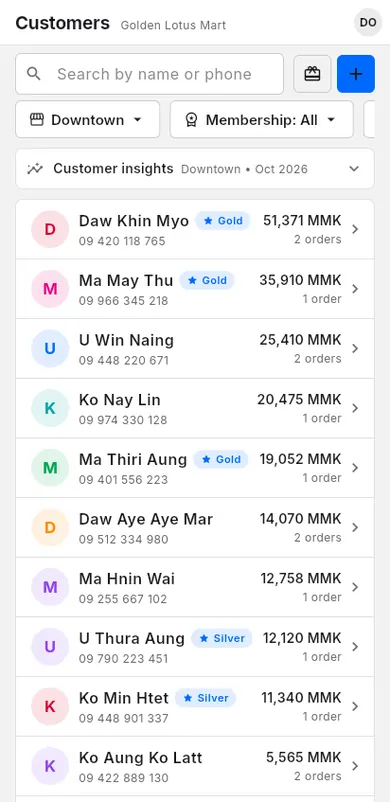
#Add a customer
A customer record keeps a name, phone number and other details, plus their sales, points and store credit.
When to use: a new customer wants points or a membership, or you deliver to them.
- Open Customers.
- Tap Add customer. The New customer panel opens.
- Type the Name and Phone.
- Optional: add Birthday, Address, Delivery area (optional) and a Note.
- Optional: choose a Membership tier (owners and managers only).
- Tap Save.
You can also add a customer while selling. See Add a customer to a sale.
To find someone, type a name or phone number in the search box. The search looks through all your customers, not only the ones already on screen. Tap a customer to see their details, recent sales and Rewards. When they have them, the panel also shows their Quotes & invoices (quotations and invoices), Layaways (layaway) and Repair jobs (repairs, when Repairs & service is on). All layaways are in Customers → Layaways.
#Loyalty points
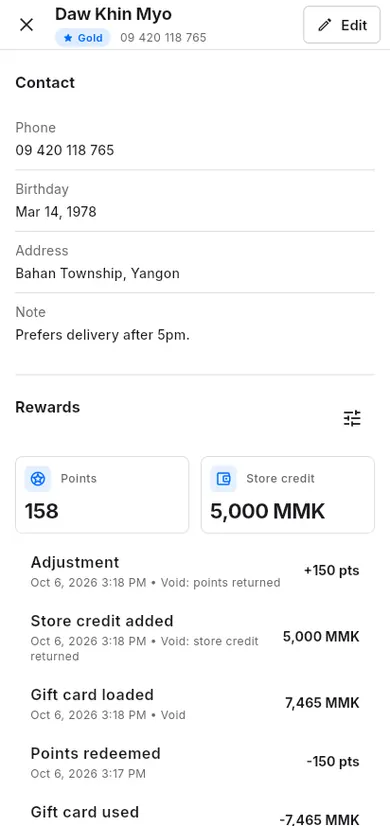
Customers earn points when they buy, and pay with points later.
Customers can check their own points, level and savings on their customer page — a private link or the QR on their receipt.
When to use: you want regular customers to come back more often.
Turn on points
- Open Customers.
- Tap Loyalty & gift cards.
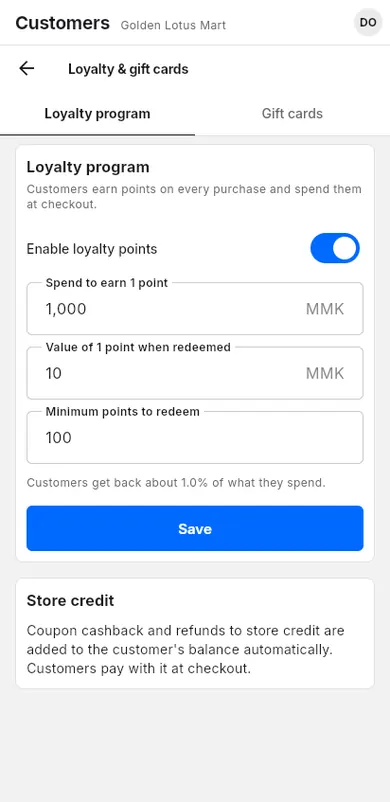
- On the Loyalty program tab, turn on Enable loyalty points.
- Set Spend to earn 1 point, for example 1,000 (each 1,000 spent gives 1 point).
- Set Value of 1 point when redeemed, for example 10.
- Set Minimum points to redeem.
- Tap Save.
Earn and use points at checkout
- Add the customer to the sale. Points are added by themselves when the sale is paid.
- To pay with points, on the charge screen choose Points as the payment.
Points are counted on the amount after discounts.
Fix a customer's points
- Open Customers and tap the customer.
- Under Rewards, tap the adjust button, then Adjust points.
- Type the Amount (use - to remove).
- Type a Reason. It is required.
- Tap Save.
#Membership tiers
A membership tier is a level such as "Silver" or "Gold". Customers in a tier get a % discount on every sale.
When to use: you want to give your best customers a lasting discount.
Create a tier
- Open Settings, then Customers & offers.
- Under Membership tiers, tap Add membership tier.
- Type the Tier name.
- Under Discount reward, set Discount (%).
- Optional: set Min purchase to apply discount.
- Optional: under Auto-suggest rules, set Minimum spend, Minimum visits or Recent visit. The app then suggests this tier for customers who match.
- Tap Save.
Give a customer a tier
- Open Customers, tap the customer, then Edit.
- Choose the tier under Membership. If the app shows "Suggested", you can tap Apply.
- Tap Save.
Only owners and managers can give, change or remove a membership tier. Cashiers see the tier but can't change it.
When this customer is on a sale, the membership discount is taken off by itself. See Stacking rules.
#Store credit
Store credit is money the customer has with your shop. They can spend it on their next sale.
When to use: you refund a customer to store credit, or a coupon gives cashback.
Store credit is added by itself when:
To pay with it, add the customer to the sale and choose Store Credit on the charge screen.
To add or remove credit by hand:
- Open Customers and tap the customer.
- Under Rewards, tap the adjust button, then Adjust store credit.
- Type the Amount (use - to remove) and a Reason.
- Tap Save.
#Gift cards
A gift card holds money that anyone with the card number can spend in your shop.
When to use: a customer wants to buy a gift for someone.
Sell or top up a gift card
- Open Checkout.
- Tap ⋮, then Sell gift card.
- Type the Gift card number, or tap New number to make one.
- Type the Amount.
- Tap Add to sale.
- Charge the sale as usual.
Pay with a gift card
On the charge screen, choose Gift card and enter the card number. See Pay with a gift card.
See or stop gift cards
- Open Customers › Loyalty & gift cards.
- Tap the Gift cards tab.
- Search with Search gift card number.
- Tap Deactivate to stop a lost card, or Activate to turn it back on.