Discounts & promotions
The kinds of discounts in LiteShop, how to create a promotion, promo codes, coupons, how discounts combine, and discounts given by the cashier.
Discounts lower the price for your customers. You decide what is discounted, for whom and when. Every discount shows on the receipt as its own line, so customers see what they saved.
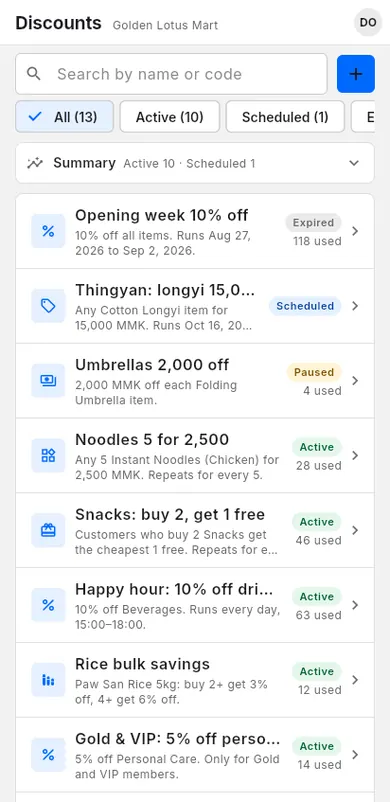
#Kinds of discounts
LiteShop has several kinds of discounts. They are set up in different places.
| Kind | What it does | Where to set it up |
|---|---|---|
| Promotion | Automatic deals, promo codes and cashier-applied deals | Discounts |
| Coupon | A code for a discount and/or cashback | Settings › Customers & offers › Coupons |
| Membership discount | % off for customers in a tier | Settings › Customers & offers › Membership tiers |
| Item discount | A discount always on one item | Items › Edit item › Item discount |
| Wholesale price | Lower unit price for big quantities | Items › Edit item › Wholesale pricing |
| Cart discount | A % or amount the cashier takes off one sale | Checkout › ⋮ › Add discount |
Promotion types you can pick in Discounts:
- % off: a percentage off items or the whole sale.
- Amount off: a set amount off items or the whole sale.
- Fixed price: chosen items sell for one set price.
- Buy X get Y: buy some, get some free or cheaper.
- Bundle: mix and match items for one price, such as 3 for 10,000.
- Quantity tiers: the more they buy, the bigger the discount.
- Spend tiers: bigger sales get bigger savings.
- Free shipping: no delivery fee.
#Create a promotion
A promotion is a deal you create in Discounts. You can start from a ready-made template and change it.
When to use: a sale event, a happy hour, "buy 2 get 1 free", or a deal for members.
- Open Discounts.
- Tap Create discount.
- Under Quick start, pick a template (for example Happy hour, Buy 1 get 1 free, Bulk discount, Spend & save, Promo code or Staff discount), or pick a type.
- Type a Name. Customers see it on the receipt.
- Set the discount value, for example the Percent off.
- Under Applies to, choose Entire sale, All items, Specific items or Categories.
- Under How customers get it, choose Automatically, With a code or Cashier applies it.
- Optional: set Who can get it, When it runs (start, end, days and times) and Where it applies (shops).
- Tap See example to check how it works on a sample receipt.
- Tap Save.
Under Limits & combining you can set Total uses (optional) and Uses per customer (optional). A limit per customer needs a customer on the sale.
#Promo codes
A promo code is a promotion that works only when the cashier enters its code, for example "SAVE10".
When to use: you share a code on Facebook or Viber, and only people with the code get the deal.
Create the code
- Create a promotion (see Create a promotion).
- Under How customers get it, choose With a code.
- Type the Discount code, or tap Generate.
- Tap Save.
Use the code at checkout
- Add items to the cart.
- Tap ⋮, then Apply code or coupon.
- Type the code in Promotion or coupon code.
- Tap Apply.
#Coupons
Coupons are codes set up in Settings. A coupon can take money off, give cashback to the customer's store credit, or both.
When to use: you want a code that also gives cashback, or that controls stacking with membership and item discounts.
- Open Settings, then Customers & offers.
- Under Coupons, tap Add coupon.
- Type a Code, or tap Generate a short code. Add a Name.
- Under Offer, pick a Discount type and value, and/or a Cashback type and value.
- Under Rules, set the Minimum spend (optional) and an expiry date (Set expiry). Keep Active on.
- Under Stacking, choose if it works with other coupons, item discounts and membership discounts.
- Tap Save.
The cashier applies a coupon the same way as a promo code: ⋮ › Apply code or coupon.
Usage limits
Under Rules you can also limit a coupon:
- Limit how many times it can be used — type the Total uses, for example 100. After 100 sales the coupon stops working. The editor shows how many times it was used so far.
- One use per customer — each customer can use it once. The cashier must pick the customer before adding the coupon.
Every register counts the same uses, also when two registers charge at the same moment: the limit is never passed. If a sale is voided or fully refunded, its use comes back. A sale made offline (already paid) is kept even when the limit ran out meanwhile, and shows in Alerts.
#How discounts combine
When a sale has more than one discount, the app takes them off in this order. Each one is worked out on what is still left to pay, so "10% + 10%" is 19%, not 20%.
- Item discounts and wholesale prices (already in each line's price).
- Promotions.
- The cashier's cart discount.
- The membership discount.
- Coupons and codes, in the order they were applied.
Rules to know:
- Promotions with Can combine with other discounts on run one after another, in Priority order.
- A promotion that cannot combine does not share an item with other promotions. Different promotions can still apply to different items in one sale.
- Apply to items already discounted lets a promotion also apply to items that have a manual discount.
- Minimum-spend rules for memberships and coupons look at the amount after promotions.
- The total discount is never more than the goods. Free shipping only lowers the delivery fee.
#Items sold by weight
On goods sold by weight (rice, meat, vegetables) discounts count the weight:
- % off takes its % off the weighed line.
- Amount off each item and Fixed price are per kg (or per viss): 200 off on 2.5 kg = 500 off.
- Minimum quantity, Quantity tiers and an item's Min weight are weights: 2 = 2 kg or more.
- An item's Discount weight (remaining) counts kg to the gram and is given back on a void or full refund.
- Buy X get Y and Bundle count pieces, so weighed items never take part. The editor warns you, and the checkout says "Items sold by weight don't count for this deal".
The editor shows "Sold by weight: amounts are per kg…" when the items you pick are weighed. See Discounts on weighed items for a worked example.
#Discount by the cashier
The cashier can take a % or an amount off the whole sale, or pick a deal you made with Cashier applies it.
When to use: you give a discount at the counter, for example to a staff member or a regular customer.
- Add items to the cart.
- Tap ⋮, then Add discount. The Cart discount panel opens.
- Choose % or the currency.
- Type the Discount, or tap a quick button such as 10%.
- Or, under Promotions, pick a deal made with Cashier applies it.
- Tap Apply.
More about discounts while selling: Discounts and coupons at checkout.