Items
Add items, variants and categories, set prices and wholesale prices, use barcodes, show items on your website and import items from CSV.
Items are the products you sell. This page shows how to add and edit items, set prices, use barcodes and bring in many items at once.
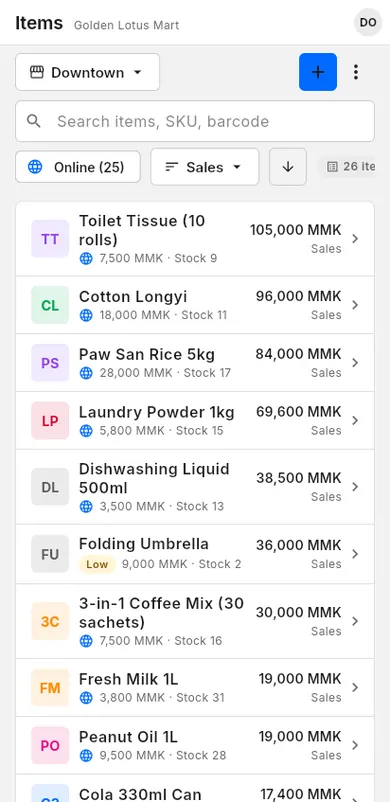
#Add an item
An item has a name, a price, and (if you want) a photo, a category and a barcode.
When to use: you start selling a new product.
- Open Items.
- Tap Add item. The New item panel opens on the right.
- Under Item photo, tap Gallery or Camera to add a photo (optional).
- Under Basics, type the Item name.
- Fill in Pricing (see Prices).
- Choose a Category (see Categories).
- Tap Save.
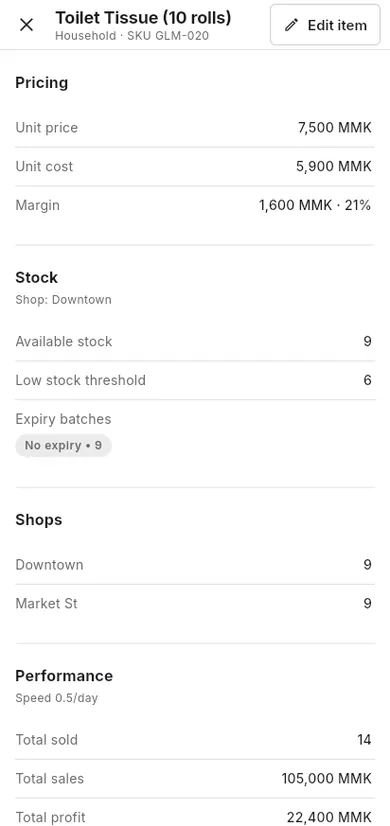
To change an item later, tap it in the list, then tap Edit item.
#Variants
Variants are versions of one item, such as sizes or colours. Each variant has its own name, barcode and price.
When to use: one product comes in several sizes, colours or flavours.
- Open the item with Edit item (or start a New item).
- Scroll to Variants.
- Tap Add variant.
- Type the Variant name, for example "Large".
- Enter the Barcode, Cost price and Retail price for this variant.
- Repeat steps 3–5 for each variant.
- Tap Save.
#Categories
Categories group your items, for example "Drinks" or "Snacks". A category can also have subcategories.
When to use: you want items grouped on the checkout screen, in reports and in stock counts.
- Open the item with Edit item.
- Under Category, pick a category from the list.
- If it is not there, tap Add new category, type the name and confirm.
- To use a smaller group, pick or add a Subcategory the same way (Add new subcategory).
- Tap Save.
#Prices
Each item has a cost price (what you pay) and a retail price (what customers pay). You can also add wholesale prices for big quantities.
When to use: you add an item, or your prices change.
Cost and retail price
- Open the item with Edit item.
- Under Pricing, choose the Currency if you sell in more than one currency.
- Enter the Cost price.
- Enter the Retail price.
- Tap Save.
Wholesale prices
A wholesale tier gives a lower unit price when the customer buys at least a set quantity.
- Under Wholesale pricing, tap Add wholesale tier.
- Enter the Min. quantity, for example 12.
- Enter the Wholesale unit price.
- Add more tiers if you need them, then tap Save.
At checkout the lower price is used by itself when the quantity in the cart reaches the minimum.
Item discount
Under Item discount you can set a discount that is always applied to this item in the cart. Pick a Discount type (Percentage (%) or Fixed amount), enter the value, and optionally a Min qty (optional) and Discount qty (remaining) to limit how many units get it. For other kinds of discounts, see Discounts.
#Barcodes
A barcode lets you add an item to the cart by scanning instead of searching.
When to use: your products have barcodes, or you print your own labels.
- Open the item with Edit item.
- Under Basics, type the number in Barcode.
- Or tap Scan barcode (the scanner icon) and point the camera at the barcode.
- Tap Save.
To scan at checkout, see Search and scan.
#Show on your website
If you have an online store, you choose which items customers can see and order there.
When to use: you want an item on (or off) your shop website.
- Open the item with Edit item.
- Under Online store, turn on Show on online store.
- Tap Save.
Other ways:
- In the item list, tap More on a row, then Show online or Hide online.
- Tap the ⋮ (More actions) button at the top, then Choose items for website to pick many items at once.
- Use the Online filter to see only the items on your website.
#Import items from CSV
You can add many items at once by pasting rows from Excel or Google Sheets.
When to use: you are starting out and already have a product list.
- Open Inventory.
- Tap the Labels & import tab.
- Under Import items from CSV, tap Import items.
- Paste your rows. The columns are: name, price, cost, sku, barcode, category, stock. The first row can be a header.
- Tap Import.
Example row: Coffee 250g,8500,6000,COF-250,8851234567890,Drinks,24
To save your item list as a file, open Items, tap ⋮ (More actions), then Export CSV.