Payments
Choose the ways customers can pay in the shop and online, add your QR codes, set the photo check, and set up payment links.
All payment settings are in Settings → Payments. Here you choose the buttons on the charge screen, choose the ways to pay your online store and payment links offer, add your shop's QR codes and set how payment links work. Only the owner can open Settings.
#Ways to pay at checkout
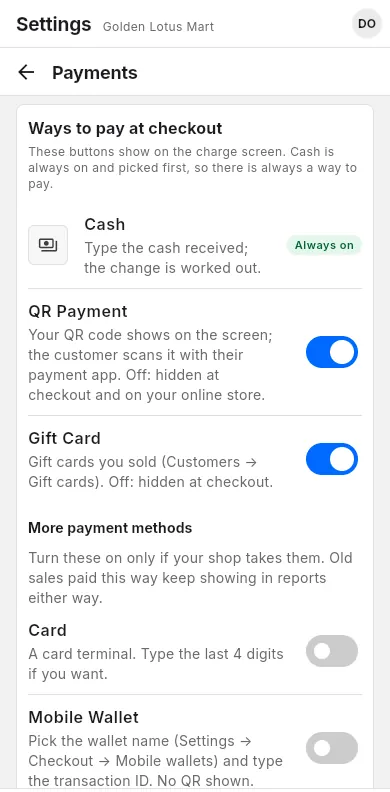
These are the payment buttons on the charge screen. Cash is always on, so there is always a way to pay.
When to use: when you start using LiteShop, or when your shop starts or stops taking a way to pay.
- Open Settings, then Payments.
- Find Ways to pay at checkout.
- Turn QR Payment and Gift Card on or off.
- Under More payment methods, turn on only what your shop takes: Card, Mobile Wallet, Bank Transfer or Other.
Changes save right away.
COD (courier) — a delivery company collects the cash at the door — shows on the charge screen once a delivery company collects cash on delivery for you. Switch it on per company in Delivery companies; see Courier cash on delivery.
These switches are for the register. If you have an online store, each method also has its own Online store switch. See Ways to pay on your online store.
#Ways to pay on your online store
If your shop has an online store, each way to pay has an Online store switch next to its register switch. Your website, LiteShop Marketplace and payment links all follow these switches. Customers pay you directly; LiteShop never touches the money.
When to use: when you open your online store, or when you start or stop taking a way to pay online.
- Open Settings, then Payments.
- Find the way to pay and turn its Online store switch on or off.
- For Cash, there are two switches: Cash on delivery (shows only when your store delivers) and Pay at pickup (shows only when your store offers pickup).
- For QR Payment, turn on Online store. You also need at least one QR code with Show on online store on. See Where each QR shows.
- For Card, Mobile Wallet, Bank Transfer or Other under More payment methods, turn on Online store, then fill in the boxes under it.
Changes save right away, and your website updates.
Card, Mobile Wallet, Bank Transfer and Other
The customer pays in their own way, for example by bank transfer, and you check the money later.
- Instructions for customers is required. Write what the customer must do, for example the bank, account name and account number, or "Pay by card when your order arrives". The method does not show online until you fill it in.
- For Other, type the Name customers see, for example the name of the payment app.
- Turn on Ask for a payment screenshot if you want the customer to send a screenshot on their order page. It is checked like QR screenshots. You still confirm the money in your banking app.
Customers see your instructions at checkout and again on their order page. To confirm the money, see Handle online orders.
#Your QR codes
Add the QR code of each payment app you use. At checkout the QR shows big on the screen for the customer to scan.
When to use: before your first QR sale, or when you get a new payment account.
- Open Settings, then Payments.
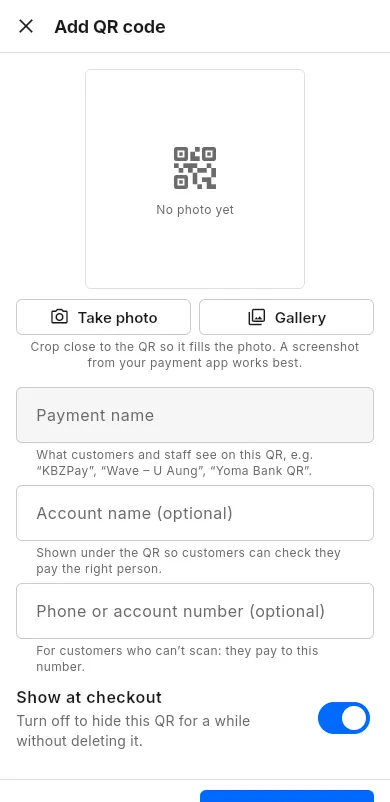
- In the QR payment card, tap Add QR code.
- Tap Take photo to photograph the QR stand, or Gallery to choose a saved QR. Crop close to the QR.
- Type the Payment name, for example "KBZPay – Main shop".
- If you want, type the Account name and Phone or account number. Customers see them under the QR.
- Tap Save.
To change a QR, tap it in the list. To remove it, open it and tap Delete. Old sales are not changed.
#Where each QR shows
Each QR code has two switches. One is for the shop, one is for your website.
When to use: to hide a QR for a while, or to use a QR only in the shop.
- Open Settings, then Payments.
- Tap the QR code in the list.
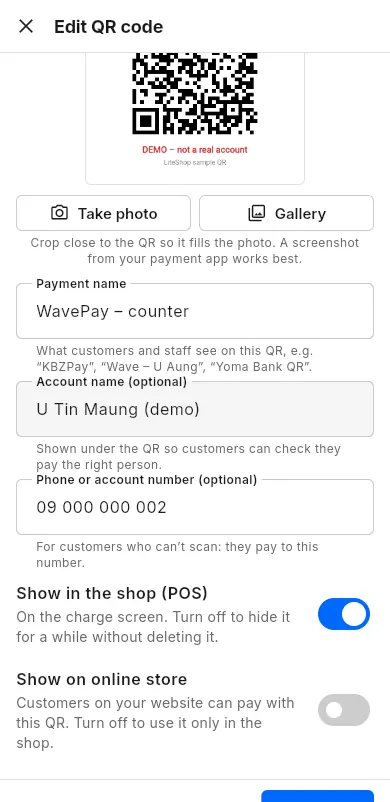
- Turn Show in the shop (POS) on or off. Off hides it from the charge screen without deleting it.
- Turn Show on online store on or off. On lets website customers and payment links use this QR.
- Tap Save.
For QR payment on your website, also turn on the Online store switch of QR Payment. See Ways to pay on your online store and QR payment on the website.
#Payment photo check
For every QR payment the customer must send a photo or screenshot of the payment. Staff must still confirm the money in your banking app.
When to use: to decide how much help you want from the automatic check.
- Open Settings, then Payments.
- In the QR payment card, find Payment photos.
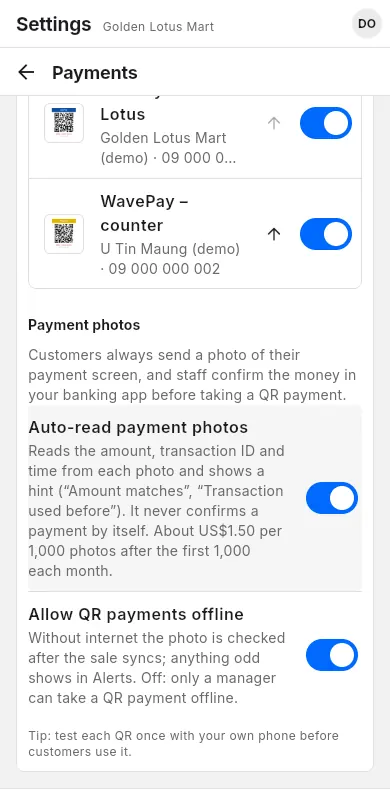
- Turn on Auto-read payment photos to read the amount, transaction ID and time from each photo and show a hint, such as "Amount matches" or "Transaction used before".
- Turn on Allow QR payments offline if staff may take QR payments without internet. The photo is then checked after the sale syncs.
- Under If a screenshot can't be read, choose Let customer send it or Ask for another screenshot. This is for online customers.
#Gift cards
The Gift Card switch shows or hides the gift card button at checkout. You sell and load gift cards in Customers.
When to use: turn it on if your shop sells gift cards; turn it off if you don't.
- Open Settings, then Payments.
- In Ways to pay at checkout, turn Gift Card on or off.
To sell a gift card or check its balance, see Gift cards. Gift cards cannot be used on your online store or on payment links, so the row shows Not available on the online store. Balances are checked at the counter.
#Payment link settings
A payment link sends the cart to the customer's phone from checkout. These settings control what the customer can do on the link.
When to use: before you send your first payment link.
- Open Settings, then Payments.
- Find the Payment links card.
- Check the line at the top. It says how many QR codes customers can use online. If it says none, turn on Show on online store for a QR code.
- Choose how long links work in Links expire after. The default is 1 day.
Payment links offer the same ways to pay as your online store: the Online store switches. Cash shows when Cash on delivery (delivery links) or Pay at pickup (pickup and in-shop links) is on. Card, Mobile Wallet, Bank Transfer and Other show with your instructions. See Ways to pay on your online store.
If your shop has no online store, the Payment links card has the switch Allow cash on delivery / pay at pickup instead. Turn it on if customers may pay in cash later. It is off at first.
To send a link, see Send to customer. To follow links, see Payment links in Online orders.