Cash drawer
Start the drawer with your starting cash, record pay ins and pay outs, log expenses, and end the drawer with a count and a drawer report (Z report).
The Cash drawer page keeps track of the cash in your till during a shift. You count the cash at the start, the app adds cash sales and takes off cash refunds, and at the end you count again to see if the drawer is right.
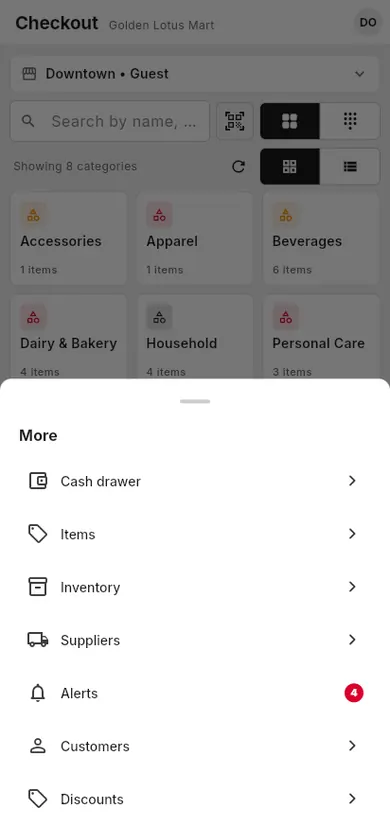
On phones, open Cash drawer from More at the bottom.
#Start the drawer
When to use: at the start of each shift, before the first sale.
- Open Cash drawer. (On Checkout you can also tap Start drawer on the yellow note No cash drawer started for this shop.)
- Count the cash in the drawer.
- Type it in Starting cash.
- Tap Start drawer.
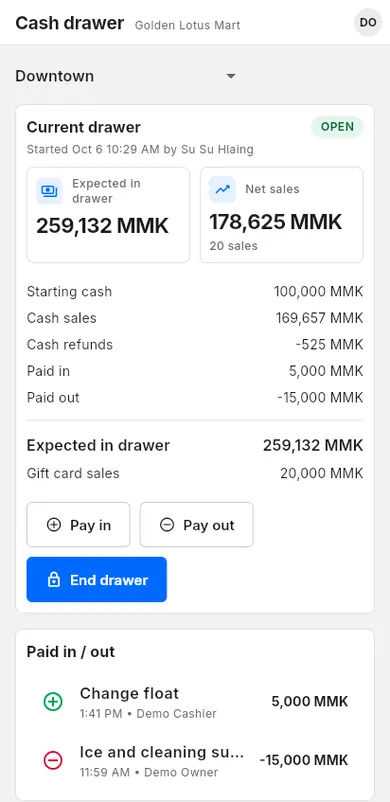
The Current drawer card now shows Expected in drawer: the cash that should be in the till right now.
#Pay in and pay out
Record cash you put into the drawer or take out of it, so the count at the end is right.
When to use: Pay in when you add change money; Pay out when you pay something from the till, like a supplier delivery or snacks.
- Open Cash drawer.
- Tap Pay in or Pay out.
- Type the Amount.
- Type a Reason, for example "Extra change" or "Supplier delivery".
- Tap Save.
The list Paid in / out shows each movement. Pay ins and pay outs also work without internet; they sync later.
#Expenses
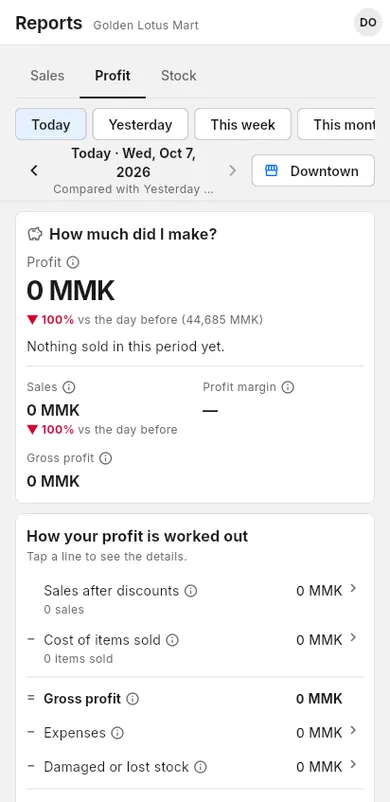
Expenses are your business costs, like rent, electricity or transport. They are not part of the drawer. They are used in the profit report.
When to use: to record a cost so your profit is correct. Owners and managers can see the Profit tab.
- Open Reports, then the Profit tab.
- Under Recent activity, tap Expenses.
- Tap Add expense.
- Pick a Category, or add a new one.
- Type the Amount and check the Date.
- Optional: add a Title and Notes.
- Tap Save.
You can also add an expense from Items → ⋮ → Add expense.
#Scan a bill into an expense
Take a photo of a bill (electricity, internet, rent, a taxi or delivery receipt) and LiteShop fills in the expense for you.
When to use: you have a paper bill and don't want to type it in.
- Tap Add expense (Reports → Profit → Expenses, or Items → ⋮), then Scan a bill.
- Tap Take photo (or Choose photos), then Read receipt.
- Check what was read, next to the photo: Paid to, Amount, Category, Date, Bill or receipt number and Notes. Yellow fields were hard to read: check them.
- Owners with Business finance: pick Paid from.
- Tap Save expense.
The category comes from what you chose for the same payee before, else from words on the bill ("electricity", "rent", "taxi" …). LiteShop remembers your choice for that payee next time.
Bill scans count in your plan's receipt scans, like purchase receipts.
#End the drawer
When to use: at the end of each shift, or when another cashier takes over.
- Open Cash drawer.
- Tap End drawer.
- Count all the cash in the drawer.
- Type it in Actual cash counted.
- Read the message: Drawer is balanced., Over by or Short by an amount.
- Optional: type a Note, for example why the drawer is short.
- Tap End drawer.
The drawer report opens right away. See Drawer report.
If a pay in, a pay out or a sale reaches the drawer while you count (on this register or another one), the panel says The drawer changed and shows the new expected cash. Check your count against it; one tap on End drawer ends the drawer with the figure on screen. Only if the figure changes at the very moment you tap, the panel shows the new one first and asks you to tap again. If ending the drawer fails, the panel says why and stays open; tap Cancel to close it.
The drawer counts the sales of every shop (pickup orders are saved under the pickup shop). If the sales of a shop can't be loaded, the app shows Couldn't load all sales — try again. instead of the totals, and End drawer stays off so the drawer is never ended on a short count. Tap Try again, or wait: it loads again by itself. If a saved sale can't be read, owners and managers also see which one (Can't read:); it goes away by itself once the server's copy loads.
If offline sales or pay ins / pay outs of this drawer are still only on this device, the app asks first. Tap Sync now and end the drawer after they sync. If you tap End anyway, the offline sales still count in this drawer, and pay ins / pay outs that sync later go to the next drawer. When no drawer is open then, they are shown on this drawer's report (not in its totals), for up to 3 days after it ended, and the owner gets an alert.
#Checked by LiteShop
After you end a drawer, LiteShop works out the expected cash again from the sales, refunds and pay ins / pay outs it has. If the register saved a different figure, the owner gets the alert Drawer ended with a wrong expected cash. Drawer history, the drawer report, the daily report and Business finance then use LiteShop's figure for Expected in drawer and Over by / Short by, and the row says Expected cash the register saved.
#Drawer report (Z report)
The Drawer report is the end-of-shift summary, often called a Z report.
When to use: to check a shift, or to keep a paper copy.
It shows:
- Opened and Closed times
- Sales, Gross sales (before item and cart discounts), Discounts (item and cart discounts), Refunds, Net sales, Tax and Tips
- Sales by payment type (cash, QR and others)
- Starting cash, Cash sales, Cash refunds, Paid in, Paid out
- Expected in drawer, Actual cash counted and the Difference
- Expected cash the register saved, when LiteShop's own figure is different (see Checked by LiteShop)
- Pay ins / pay outs that synced after the drawer closed (not counted in the totals above), if any
To print it:
- In the Drawer report, tap Print.
- Tap Done to close it.
To see an old report:
- Open Cash drawer.
- Scroll to Drawer history.
- Tap a closed drawer.