Team and roles
Invite staff, choose roles, set passcodes, lock the register, track hours and remove people.
LiteShop has two kinds of staff:
- People with their own sign-in. You invite them by email in Settings > Team. They use their own Google account on their own device.
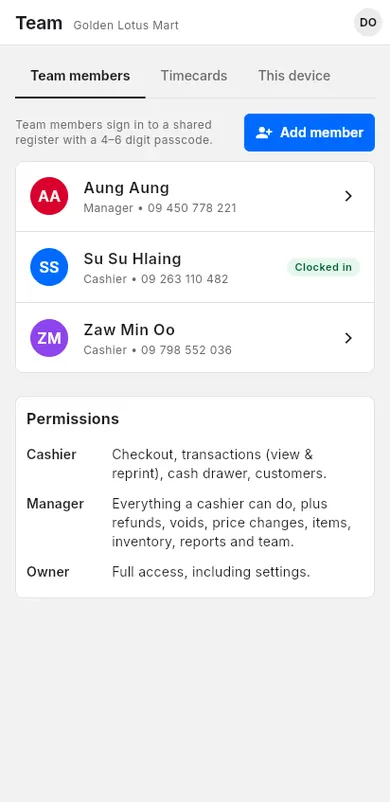
- Team members with a passcode. You add them in Team. They share a register that is signed in with the owner's or a manager's account, and unlock it with a 4–6 digit passcode.
You can use one kind or both.
#Invite people
An invitation lets someone join your business with their own Google account. Only owners can invite.
When to use: when a manager or cashier needs to sign in on their own phone or computer.
- Open Settings. On a phone, tap More first.
- Tap Team.
- Tap Invite by email (Invite on small screens).
- Type the Email of their Google account.
- Choose the Role.
- Tap Send invitation.
- Ask the person to sign in to LiteShop with that account.
- They see You have an invitation and tap Accept.
The invitation shows under Pending invitations until they accept. Tap Resend to show it as new again, or Revoke to cancel it.
#Roles
The role decides which pages a person can open.
| Role | What they can do |
|---|---|
| Cashier | Checkout, transactions (view and reprint), cash drawer, customers |
| Manager | Everything a cashier can do, plus refunds, voids, price changes, items, inventory, reports and team |
| Owner | Full access, including settings |
When to use: when you invite or add someone, or when their job changes.
To change the role of someone with their own sign-in:
- Open Settings > Team.
- Find the person.
- Choose the new role in their row.
You can make someone a manager or a cashier. A business has one owner, the person who created it: nobody else can change the owner's role or remove them.
To change the role of a passcode team member, open Team, tap their name, choose the Role and tap Save.
#PINs and passcodes
Each team member gets a 4–6 digit passcode. They type it to use a shared register, so each sale shows who made it.
When to use: when cashiers share one phone, tablet or PC.
- Open Team.
- On Team members, tap Add member.
- Type the Name.
- Choose the Role.
- Type a Passcode (4–6 digits).
- Optional: add Phone, Hourly wage (optional) and the shops under Works at. None selected means all shops.
- Tap Save.
To change a passcode, tap the member, type a New passcode (leave blank to keep) and tap Save.
#Register lock and switching users
The register lock shows Who is using the register? Each person taps their name and types their passcode.
When to use: when several people use the same register during a day.
Turn on the lock
- Open Team.
- Tap This device. Only owners can open it.
- Turn on Require team passcode.
- Optional: turn on Lock after each sale.
These switches are saved on this device only. While the lock is showing, every other page, even one opened from a link or bookmark, goes back to the lock.
Switch or lock
- Tap your initials (the account menu). On a phone it is at the top; on a big screen it is at the bottom of the side menu.
- Tap Switch team member to let someone else sign in.
- Or tap Lock register when you leave the counter.
#Override with manager passcode
Some things only an owner or a manager may do: change a price, give a manual discount, sell over a customer's credit limit, sell stock held for online customers, refund or void a sale, send a payment link as a pre-order, confirm a paid link when stock would go below zero, or fix a timecard. When a cashier is blocked, LiteShop shows Override with manager passcode instead of only a message.
When to use: a manager is nearby and agrees, but the cashier keeps the register.
- Tap Override with manager passcode.
- In Manager approval, tap the owner's or manager's name.
- The manager types their passcode on the keypad and taps Approve.
- The blocked step carries on by itself.
- It allows the action once: one price change or discount sale, one refund or void, one link, one timecard fix. Next time, ask again.
- The approval runs out after a few minutes (10 for a sale, 5 for the rest). If it ran out, the app asks the manager again.
- The manager's name is saved with the sale, refund, link or timecard, so you can see who approved it.
- A wrong passcode shows how many tries are left. After 5 wrong tries that manager is locked for 15 minutes.
- Only owners and managers who have a passcode in Team are listed.
#Timecards and clock in
Team members clock in and out with their passcode: on the passcode screen, or with Clock in / out in the account menu. Staff with their own sign-in clock in on their own phone. LiteShop counts their hours, breaks and overtime.
When to use: to track working hours and wages.
- On the passcode screen, tap your name.
- Type your passcode.
- Tap Clock in at the start of work.
- Tap Continue to register.
- At the end of work, open the passcode screen again and tap Clock out.
To see hours, open Team > Time clock. Managers fix forgotten clock-outs there, with a reason. Breaks, timesheets, commission and the Staff report: see Time clock and commission.
#Remove a member
Remove people who no longer work for you, so they can't open your shop.
When to use: when someone leaves your business.
Someone with their own sign-in
- Open Settings > Team.
- Tap the remove icon (Remove from team) in their row.
- Tap Remove.
They keep their LiteShop account but lose access to your business. You can invite them again later. If they are signed in, the app tells them they were removed and lists any offline sales on their device that could not sync, so they can show you.
Leave a business yourself
A manager or cashier can leave on their own: open the account menu (your initials) and tap Leave business, then confirm. Sync any offline sales first. If you belong to another business, it opens next.
Work in more than one business
One account can belong to several businesses, for example your own shop and another shop where you work as a cashier.
- When another business invites you, tap Accept on the invitation at the top of the screen. Your own business stays yours.
- To move between them, open the account menu and tap Switch business, then Switch next to the business.
Each business keeps its own shops, staff, stock and sales; you see the menu of your role there. Sync any offline sales before you switch. The owner can still change your role or remove you while you work in another business.
A passcode team member
- Open Team.
- Tap their name.
- Turn off Active.
- Tap Save.
Their name leaves the passcode screen. Old sales still show their name.