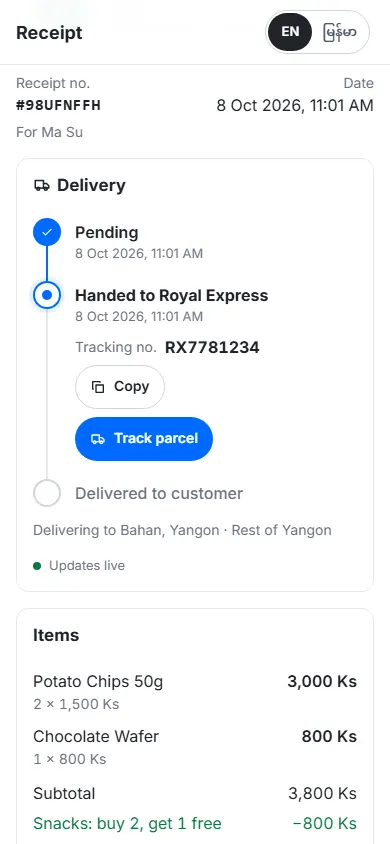
Transactions
Find past sales, print or share receipts and receipt links, give refunds, void sales, and hand deliveries to a courier with a tracking number.
Transactions lists every sale and refund. Open a sale to see its items and payments, send the receipt again, give a refund, or record the delivery.
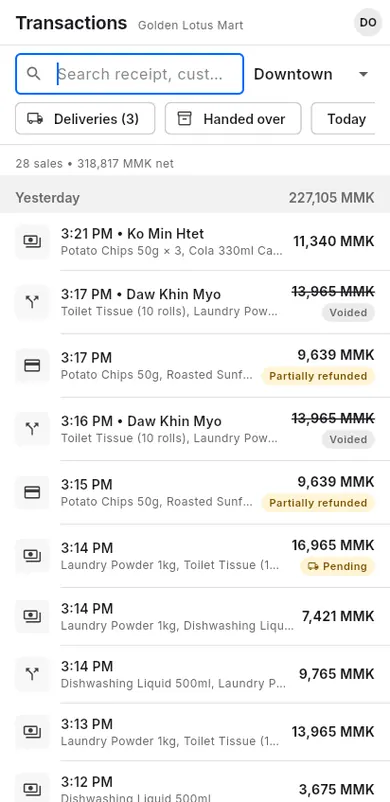
#Find a sale
When to use: a customer comes back with a question, a return or a missing receipt.
- Open Transactions.
- Tap a time range: Today, 7 days, 30 days or All.
- Type in the search box (Search receipt, customer or item): a receipt number, a customer name or an item.
- Optional: tap Filter to show only Refunds or Voided sales, or one payment type.
- Tap the sale to open it.
#Receipts
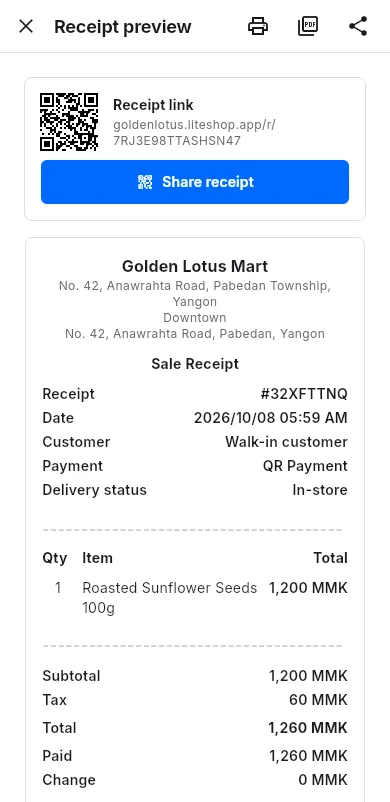
Right after each sale, the Receipt preview opens. You can also print or send a receipt later from Transactions.
When to use: the customer wants a paper or digital receipt.
Right after the sale
- In Receipt preview, tap Print to printer for a paper receipt.
- Or tap Share (image) to send a picture of the receipt to Viber, Telegram or another app.
- Or tap Share PDF / email to send a PDF.
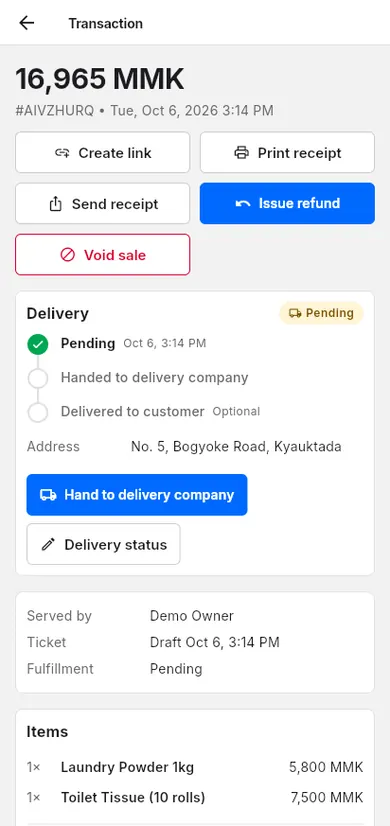
Later, from Transactions
- Open the sale.
- Tap Print receipt or Send receipt.
Set up your printer in Printer.
#Receipt links and QR
Every sale gets its own receipt link. The customer opens it on their phone to see the receipt. For delivery orders, the same link later shows the delivery status and tracking.
When to use: to give a digital receipt without paper, or so the customer can follow a delivery.
- In Receipt preview, find the Receipt link card.
- Let the customer scan the QR code with their phone camera.
- Or tap Share receipt, then Send link, and send it in a chat.
From Transactions:
- Open the sale.
- Tap Share receipt. A QR code and Send link appear.
- For older sales without a link, tap Create link first.
The receipt page shows your receipt design too (your logo, text and contact buttons, a Track parcel button after handover): see Receipt design.
The top of the receipt page says how the sale stands: Paid, On credit or Partly paid (money the customer still owes you), Pay on delivery (courier cash on delivery, until the parcel is delivered), Refunded or Voided.
#Refund
A refund gives money back for some or all items. Only owners and managers can refund.
When to use: the customer returns goods, or you charged too much.
- Open the sale in Transactions.
- Tap Issue refund.
- Pick the items and quantities being returned, or tap Return all items.
- Check the Refund amount. You can change it.
- In Refund to, pick how you pay the money back, for example Cash.
- Tap a reason (for example Returned goods) or type one in Reason.
- Under each returned item, choose Back to stock or Damaged. Damaged items stay out of stock and go to the Damage list. Tapping the reason Damaged item marks them all damaged.
- Tap Refund (the button shows the amount).
#Void a sale
Voiding cancels the whole sale. Items go back to stock, except ones you mark Damaged, and the sale is left out of your reports. Only owners and managers can void.
When to use: the sale was a mistake, for example rung up twice. For a real return, use Refund instead.
- Open the sale in Transactions.
- Tap Void sale.
- Type a Reason.
- For each item, leave Back to stock or choose Damaged. Damaged items go to the Damage list.
- Tap Void sale to confirm.
#Delivery handover
For delivery sales, record which delivery company (courier) took the parcel. The customer then sees it on their receipt link.
When to use: when you give the parcel to a courier or your own rider.
- Open the sale in Transactions. Tap Deliveries to see all parcels still waiting.
- In the Delivery card, tap Hand to delivery company.
- Under Delivery company, tap the company. Choose Own rider if your shop delivers it, or Other delivery company and type its name.
- Type or scan the tracking number (see Tracking numbers).
- Tap Save handover.
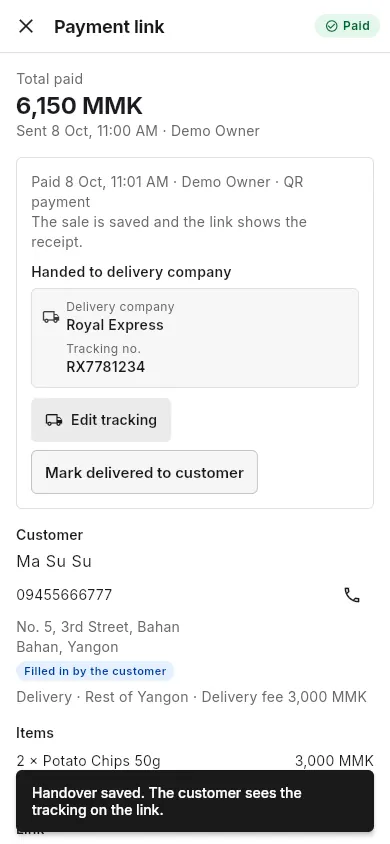
The sale now shows Handed to delivery company. When the customer has the parcel, you can tap Mark delivered to customer. This step is optional.
#Tracking numbers
The tracking number is the number on the courier's parcel label. With it, staff and the customer can follow the parcel.
When to use: every time a delivery company gives you a tracking number.
- In Hand to delivery company, tap Tracking number (optional).
- Type the number, or tap the scan button (Scan tracking number) and point at the barcode or QR on the label.
- If the company has a tracking link set up, the Tracking link fills in by itself. For Other delivery company, you can paste a link in Tracking link (optional).
- Tap Save handover.
To change it later, open the sale and tap Edit tracking. Use Copy tracking number or Open tracking to check the parcel.