Offline mode
Keep selling when the internet drops. Learn what works offline, the limits, how to see what is waiting to sync, and how to test it.
When the internet stops, LiteShop keeps selling. Sales are saved on the device and sent to the server when the internet is back. This page explains what works offline, the limits, and how to check that everything has synced.
#How it works
You don't need to switch anything on. When the device loses internet, a bar at the top says Offline — sales are saved on this device. Keep selling as usual.
When to use: whenever the internet or power for the router is down.
What works offline:
- Ringing up sales with cash and QR payments
- Pay in and Pay out in the cash drawer
- Adding a new customer
- Open tickets
What needs internet:
- Refunds and voids of synced sales
- Starting or ending the cash drawer
- Changing items and settings, inviting staff, purchases
- Online orders, payment links (Send to customer) and receipt links
Offline sales get a receipt number that starts with this register's code, so two registers never make the same number.
#Limits
Offline, the register can't check balances on the server. So there are two safety limits.
When to use: to understand why an offline sale is refused.
| Limit | Default | What happens |
|---|---|---|
| Store credit, gift cards and points | 20,000 per sale, combined | More than this is refused offline. Pay the rest with cash or QR. |
| Time without a sync | 24 hours | New offline sales pause until the register syncs. The cart is kept. |
The bar at the top warns you before the 24 hours end, for example Offline sales stop in 3 h — connect to sync.
A device that has never synced can't sell offline yet: it syncs right after you sign in, so stay online for a moment after signing in. If the device clock is set back, offline sales also pause until the register syncs.
#Sync status
Sync status shows what is still waiting on this device.
When to use: before you sign out, at the end of the day, or when the bar says something could not sync.
- Tap Details on the bar at the top. Or tap your account button (your initials, top right) and then Sync status.
- Check the top line: Online or Offline — no internet, and Last synced.
- Look at the list Waiting to sync. Each sale shows Waiting, Sending… or Could not sync.
- When the internet is back, tap Sync now to send everything at once.
- For a line that Could not sync, tap Retry.
When everything is sent, the panel says Nothing waiting to sync.
#Offline settings
Owners and managers set the offline rules for the whole business.
When to use: to change how much store credit, gift cards and points can pay offline.
- Open Settings, then Checkout.
- Find Offline mode.
- Tap Store credit, gift cards and points offline.
- Type the new Limit per sale. Type 0 to block them offline.
- Tap Save.
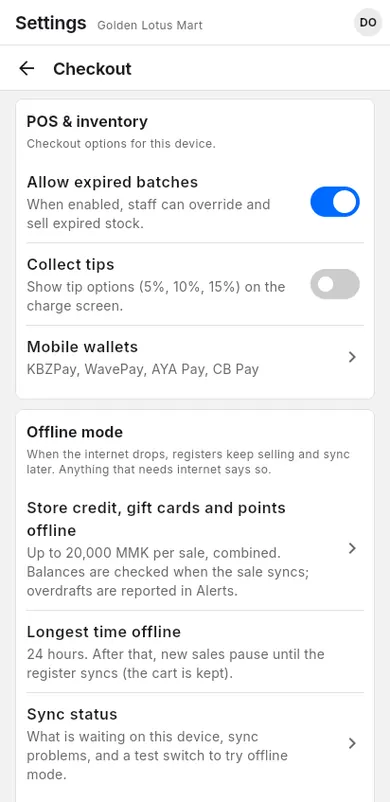
Longest time offline is shown here too. It is always 24 hours.
#Test offline mode
You can try offline mode without unplugging the internet. Only owners and managers see this switch.
When to use: to train staff, or to check that offline selling works on a device.
- Open Sync status (see Sync status).
- Turn on Work offline (test).
- The bar shows offline. Ring up a small test sale with cash.
- Open Sync status again. The test sale is in Waiting to sync.
- Turn off Work offline (test).
- Tap Sync now. The sale is sent and the list is empty again.