Reports
See how much you sold, how much you made, and what is in your stock, for any day, week, month or year.
Reports answers three questions: How much did I sell? How much did I make? What's in my stock? Each answer is a tab: Sales, Profit and Stock. Reports are for owners and managers.
Money still owed has its own tabs: Credit (customers who owe you) and Receivables & payables (what others owe you, what you owe and the net) — see Receivables & payables.
#Choose the period and shop
The bar under the tabs sets the time and the shop for all three tabs.
When to use: every time you open Reports.
- Open Reports.
- Tap a period: Today, Yesterday, This week, This month or This year.
- For other dates, tap Custom and pick the first and last day.
- Use the arrows (Previous period and Next period) to move back or forward, for example to last month.
- If you have more than one shop, tap the shop chip and pick one shop or All shops.
#Sales
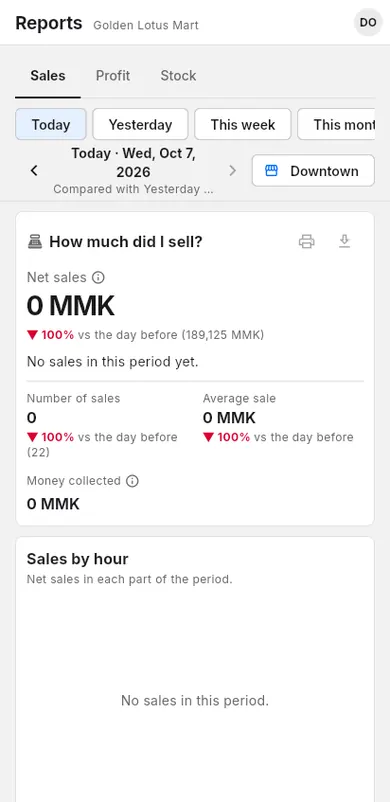
The Sales tab shows how much you sold after discounts and refunds.
When to use: at the end of the day, or to see your busiest hours and best items.
- Open Reports and tap Sales.
- Read the top numbers: Net sales, Number of sales, Average sale and Money collected.
- Look at the chart to find your busiest hour, day or month.
- In Where the money came from, tap a line to see details, such as Discounts or Refunds.
- Scroll down for Top items, Categories, Payment methods, Team sales and Top customers.
#Profit
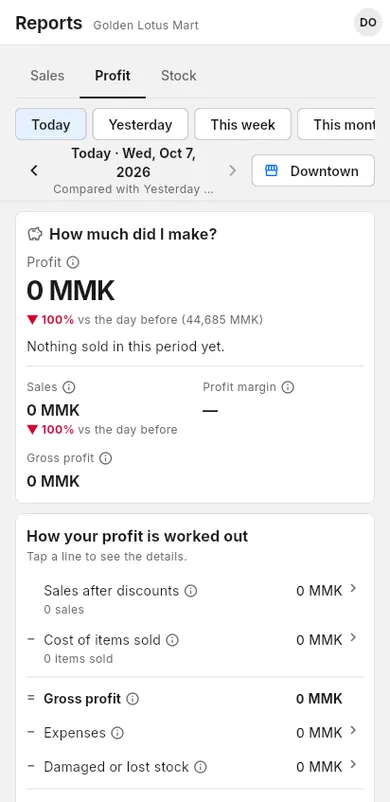
The Profit tab shows what you kept after the cost of the items, expenses and lost stock.
When to use: at the end of the week or month, to see if the shop is making money.
- Open Reports and tap Profit.
- Read Profit, Profit margin and Gross profit at the top.
- In How your profit is worked out, tap a line to see its details, such as Expenses or Damaged or lost stock.
- Check Best earners, Low margin and Sold below cost to find items to reprice.
- Open Profit by item and use Sort by to sort the list.
#Stock
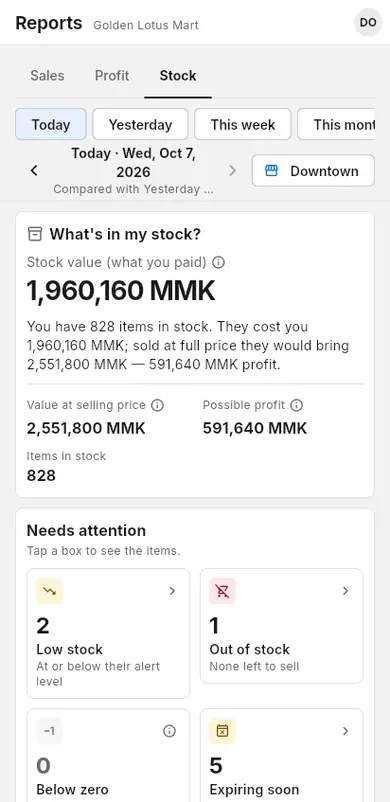
The Stock tab shows how much money is in your stock and which items need attention.
When to use: before you order from suppliers, or to find items that don't sell.
- Open Reports and tap Stock.
- Read Stock value (what you paid), Value at selling price and Possible profit.
- Under Needs attention, tap a box: Low stock, Out of stock, Below zero, Expiring soon or Not selling.
- Check Stock in and out for what you bought, sold and lost in the period.
- Tap Open inventory to fix stock levels.
#Print or export
You can print a short sales summary, or download your numbers as CSV or Excel files for your accountant.
When to use: to keep a daily record, or to send numbers to your accountant.
- Open Reports and tap Sales.
- Choose the period and shop.
- Tap Print summary to print a receipt-size summary. On phones it is the printer icon.
- Or tap Export at the top of Reports to download sales, payments, tax, refunds, expenses and more. On phones it is the download icon. See Exports for your accountant.